Tutorials — how eurotaxe.ro works
A step-by-step guide showing exactly how to recover VAT and excise duty with eurotaxe.ro — from opening your account to receiving the money. In a hurry? Watch the video below. Want every detail? The written guide is further down, with screenshots from the platform.
In short
- Open a free account — with Google or just email and password.
- Open a refund claim: choose the tax type (fuel VAT, toll VAT, excise duty) and the country.
- Upload your invoices — an AI assistant reads them automatically and fills in the claim amount.
- Submit the claim for review and track every step in the claim history.
- Get paid — the eurotaxe commission is calculated automatically, only on the amount recovered.
Detailed, step-by-step guide
Every step of the company account, explained in full — so you always know what comes next.
Step 1 — Create your account
Sign up with email and password or with Google, in a few minutes. If you choose email and password, you get a 6-digit confirmation code by email; a Google account is verified automatically. No card required, nothing to pay to sign up.
Step 2 — Fill in your company details
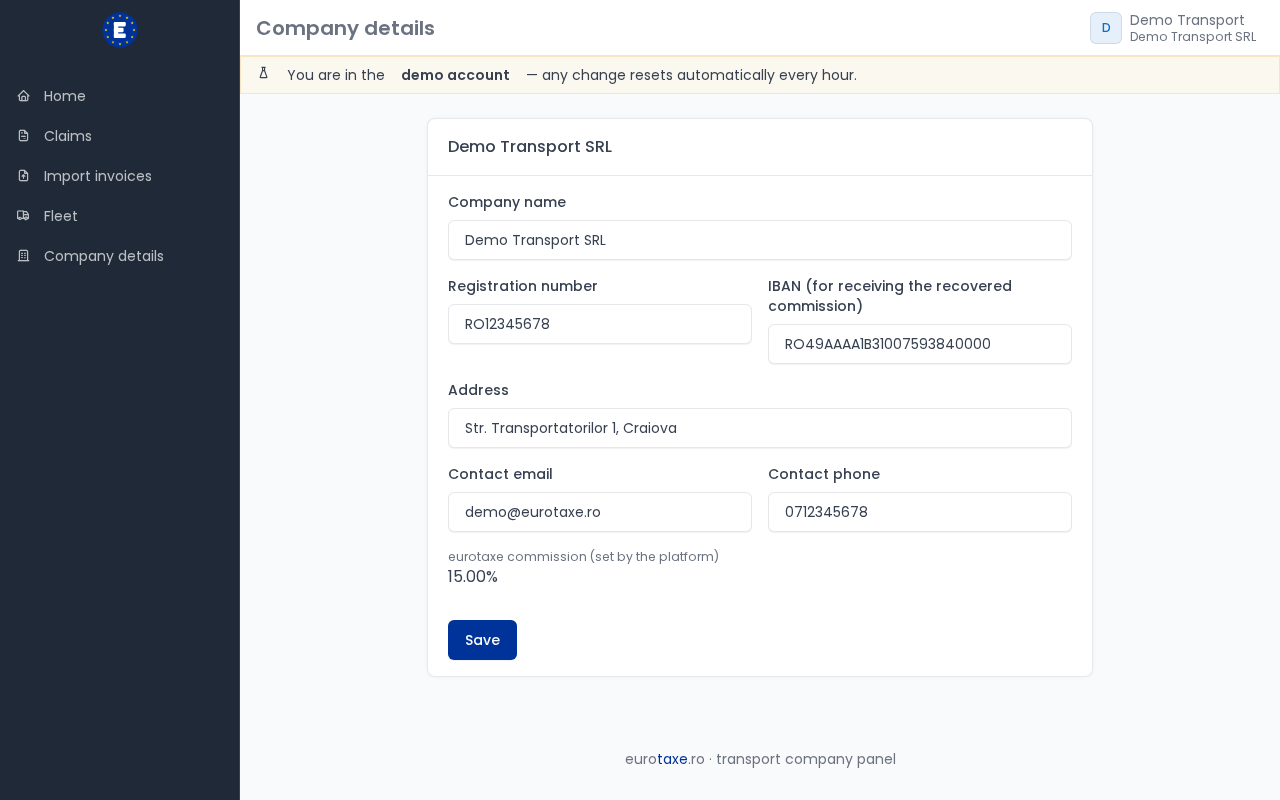
From your account (Settings) you enter your company's registration number, address and IBAN — the registration number and phone number are required, the rest can be added later. You can also add your vehicle fleet (plate number, make, model, country of registration), to link each claim to the vehicle that generated the expense.
Step 3 — Open a new claim
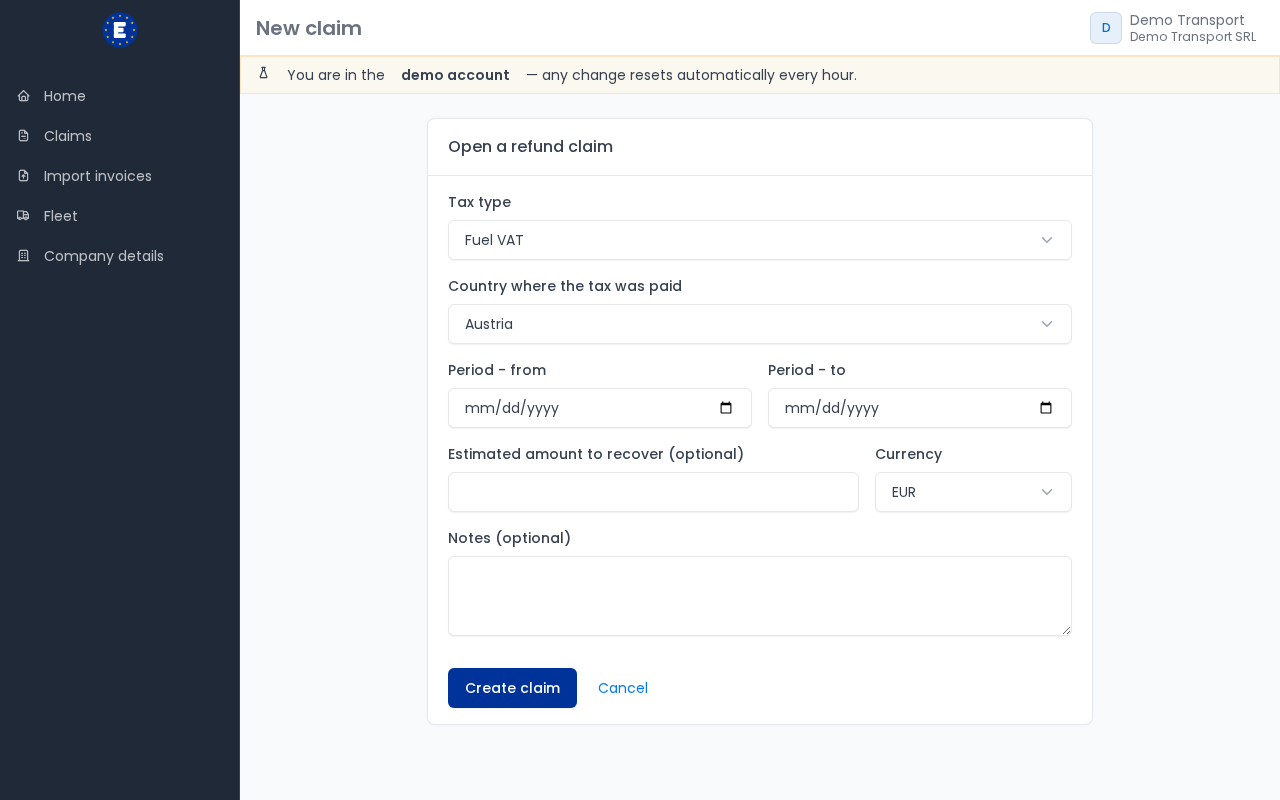
You open a separate claim for each country + tax type combination: fuel VAT, toll VAT, other VAT expenses, or fuel excise duty. Choose the period the invoices cover and, optionally, a vehicle from your fleet. If the selected country doesn't (yet) have a confirmed excise refund scheme, the platform tells you upfront.
Step 4 — Upload your invoices, AI reads them automatically
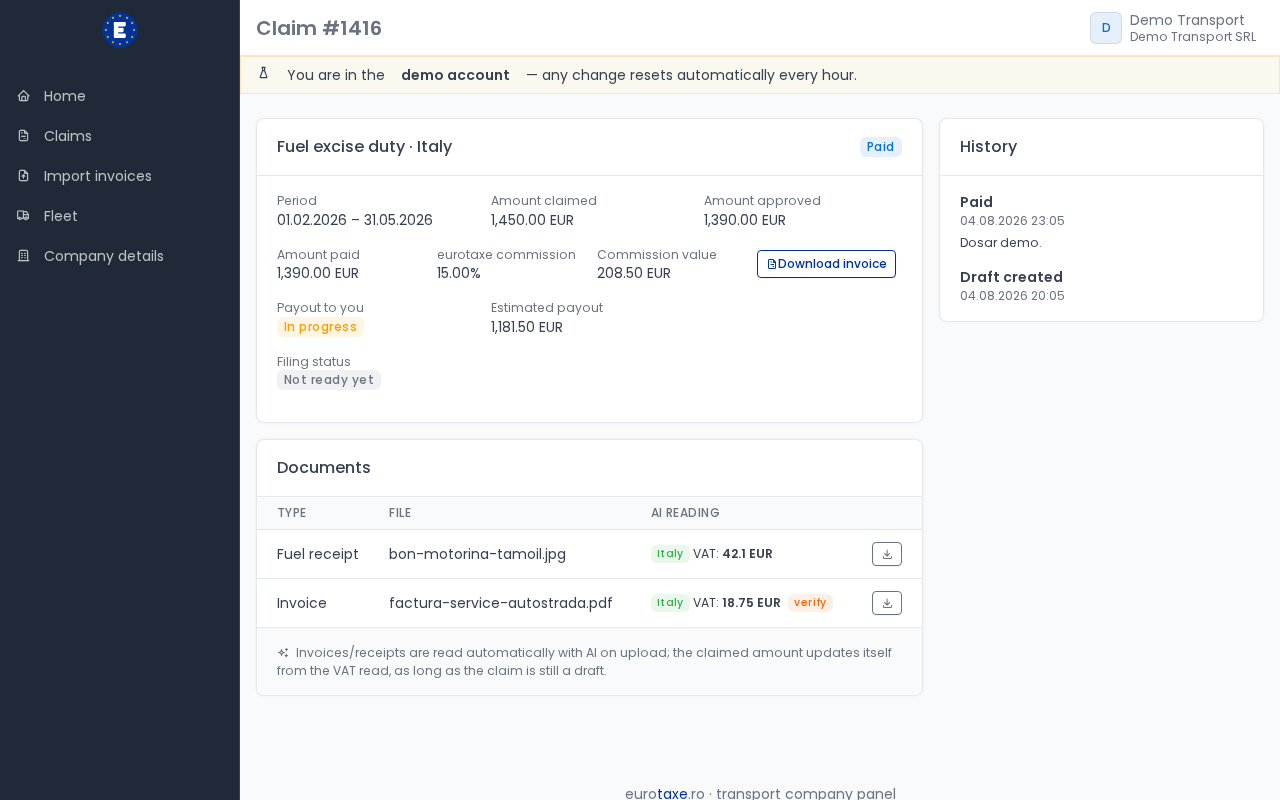
Upload invoices as PDF or photo, directly on the claim page. An AI assistant reads each document — issuer, country, amount, VAT — and automatically fills in the claim amount while it's still a draft. You quickly check what the AI read and correct it manually if something doesn't match.
Step 5 — Got your phone on you? Scan straight from the camera
No need to take a photo separately and then upload it: either from your account on the site (the "Scan with camera" button on the import page) or from the eurotaxe Android app, you photograph the receipt or invoice straight from the camera. You can scan several pages in a row, just like a desk scanner, and the documents go straight into the same AI reading pipeline.
Step 6 — Lots of invoices at once? Send them in bulk
If you have dozens of invoices piled up, you don't have to upload them one by one: upload them in bulk from the Import section, or send them to us by email/WhatsApp and we'll upload them for you. AI groups them automatically by country and tax type, and you just confirm the grouping before the claims are created — you can always move an invoice to the right group before confirming.
Step 7 — Check what documents are still missing
Each claim shows a simple indicator (red / yellow / green) comparing the number of documents uploaded with what's usually required for that country and tax type. It's indicative — a quick heads-up, not a compliance guarantee — but it helps you spot early if you still need to upload something.
Step 8 — Submit the claim for review
Once you've uploaded everything, you submit the claim from draft to review. From that point, the eurotaxe team takes over the claim, checks the documents, and may contact you if something important is missing. You can see the full history of status changes right on the claim page.
Step 9 — We prepare and file the claim with the authority
The eurotaxe team prepares a complete package — the claim summary plus scans of all the invoices — and handles the actual filing with the tax authority in the relevant country (for example, form 318 with ANAF for VAT). You just see a simple status on the claim: not ready, in progress, or ready to file.
Step 10 — Track status, deadlines and get paid
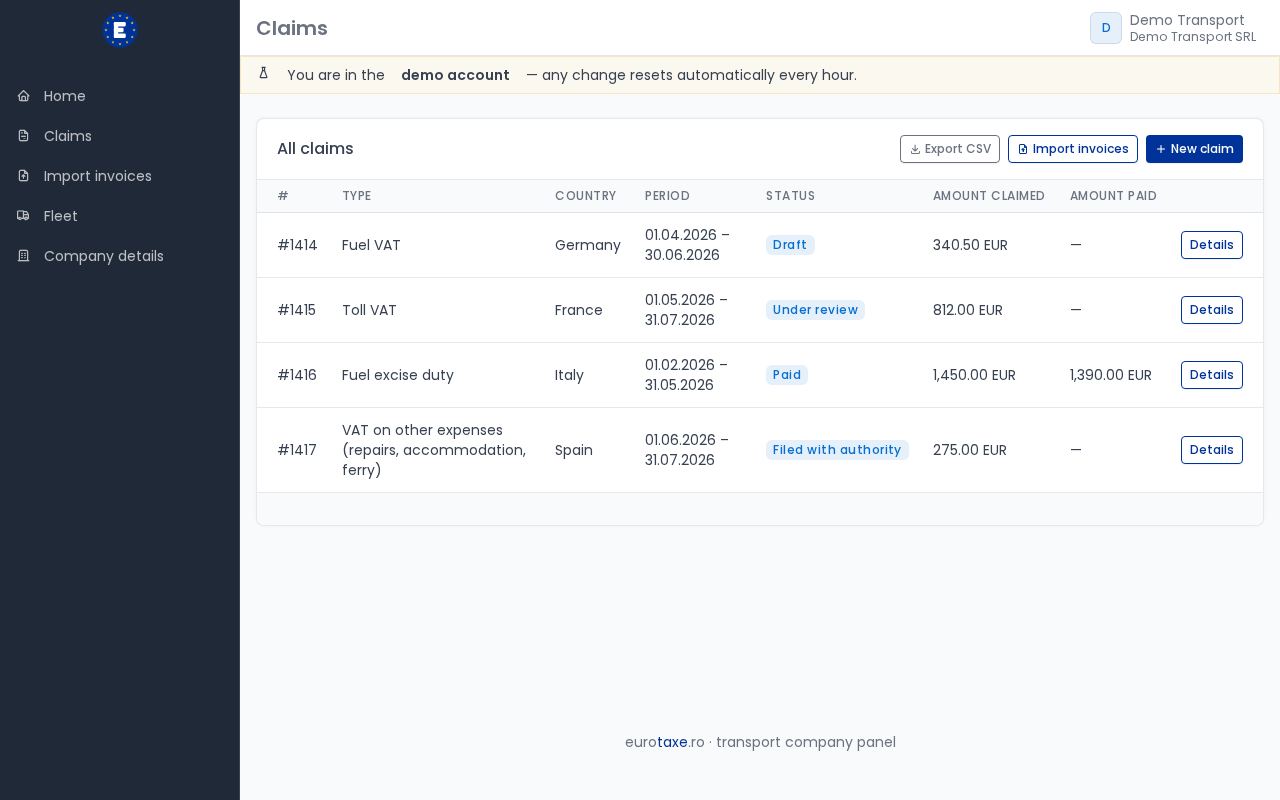
The claim moves through stages visible in your account — submitted, under review, approved (fully or partially), or rejected — and you get an alert if a legal filing deadline is approaching. When the authority approves and pays, the claim becomes paid: the eurotaxe commission is calculated automatically from the recovered amount, you get a downloadable commission invoice, and the rest of the money is paid out to you, with an email notification when it happens.